Sunday, June 6, 2010

Unit testing Android Activity


This blog is now hosted on codetrips.com (WordPress) 


This post is best read there (with any updates, as I will add to it)

------------------
As I mentioned earlier, testing on Android is not for the faint-hearted (or the man-in-a-hurry) - documentation is very thin on the ground (although I've recently seen appear a few testing-related articles in the Developer documentation for the latest SDK - haven't checked them out yet, though) and the API is cumbersome at the best of times (and outright misleading, at the worst).

The "master class" to test an Activity class MyActivity, is ActivityInstrumentationTestCase2<MyActivity> that instruments and initializes it.

Its documentation is marginally better than that for android.test package:

A framework for writing Android test cases and suites.

but, hey, we haven't set the bar too high here.

Here are a few 'top tips' as how to avoid some of the grief, that I've discovered whilst developing unit tests for my AndroidReceipts application:

Do not use the 'default' constructor, but the one that uses ActivityUnitTest(String)
In Eclipse, you can right-click on a class in the project explores and then select New/Other... to create a new JUnit TestCase: in the ensuing dialog box, then select ActivityInstrumentationTestCase2 as the 'super' class, the plugin will helpfully auto-generate the full class with the following constructor:
// DON'T DO THIS - it won't compile
public MyActivityTest(String name) {
  super(name);
}
Here, Eclipse will (correctly) complain that there is no such thing as a ActivityInstrumentationTestCase2(String name) and you will quickly figure out that a (possible) super call may be something like this:
// DON'T DO THIS - it won't work
public MyActivityTest(String name) {
  super(PKG_NAME, MyActivity.class);
}
This will, sadly, cause the test runner (android.test.InstrumentationTestRunner) to happily ignore your test class:

[2010-06-06 22:33:20 - PolarisTest] Test run failed: Test run incomplete. Expected 51 tests, received 4

the trick is to add a call to setName(name) so that the test runner will find your tests (name, incidentally, is the name of the method being run).
// Do this instead:
public ScanActivityTest(String name) {
  // NOTE -- API Level 8 have deprecated this constructor, and replaced with one that simply takes the Class<T> argument
  super(PKG_NAME, MyActivity.class);
  setName(name);
}
If you are using the SDK 2.2 (L8) version, then there appears to be a new constructor that only takes the name of the Activity's Class under test (while the constructor shown above is deprecated): I have not tried it out, and targetting L8 devices, at the moment, rather severely restricts your target market.

Beware of Eclipse (ADB) missing a change in project source
The typical cycle is to write some code, run the tests, make changes, run the tests again.

This generally works, but, from time to time (I've been unable to discern a pattern) ADB misses a change in your source code and just re-runs the same tests as before.
As this typically happens when you make changes to the 'main' project (as opposed to the 'test' one) I suspect this happens when you do not save the modified source file, this in turn does not trigger a re-build of the APK, which change would have been picked up by the deployer of the 'test' project.

Be that as it may, keep an eye on the Console view and check that the a new version of the APK for the 'main' or 'test' (or both) projects gets installed on the emulator.

If you 'remove' the app manually, you also must 'clean' the project
On the same token, at times it turns out that the only way to get ADT out of its own hole, is just to go into the Emulator's Settings/Applications/Manage Applications and just remove either or both of the installed projects.

This will make the test runner deeply unhappy, and it will manifest its unhappiness by refusing to deploy the APKs and giving out an

[2010-06-06 19:28:31 - PolarisTest] Application already deployed. No need to reinstall.

The one way to quickly 'fix' this is to go into Project/Clean... and clean one or both of the projects.

The default tearDown() calls on onPause() (but not onStop() and even less onDestroy())
Well, I was surprised to find that out - it would have been reasonable to expect the test fix to run through the whole Activity lifecycle, and shut it down "gracefully.

In case you have some 'session management' (and who doesn't these days, in a serious Android app? you want to preserve state so that the user can come back to your app and find it exactly the way she left it) this may cause some surprising results when testing.

Considering that, in the Android process management system, there is no guarantee of a 'graceful shutdown' (essentially the scheduler wants to feel free to kill your proces without having to wait for your app to get itself sorted out -- and quite rightly so: we don't want a "Windows Experience" where some poorly-paid and even less-trained programmer can bring the whole system to its knees by sheer incompetence) this is just as well: in fact, the more I look into it, the more I find myself doing state management in the onPause / onCreate / onRestart lifecycle methods, and essentially ignoring the onStop and onDestroy (in particular the latter, I wonder sometimes why it's there at all)

Whatever, words to the wise: your Activity's onStop/onDestroy won't be called, unless you do it yourself.

Unit test run concurrently, but, apparently, @UiThreadTest prevents this for the UI thread
I must confess I'm not entirely clear about the full implications of using the @UiThreadTest annotation (apart from ensuring that the tests will run sequentially in the UI thread, thus avoiding a predictable chaos if they were all allowed to try to access UI resources concurrently) but one fundamental implication of this is that sendKeys cannot be called from within a test that is annotated with the @UiThreadTest.

Despite the documentation being conspicuosly silent about this minor detail, it turns that it must not be run in the UI thread; all we know about this method is that  "Sends a series of key events through instrumentation and waits for idle." - whatever that means, the bottom line is that it does not return and your test will eventually fail with a timeout exception.

From my limited experimentation, the only workaround is to either use it only in tests thare are annotated with something such as @SmallTest or similar (but not @UiThreadTest) or to make it run in a separate thread (just create a Runnable that will execute once you are sure the UI elements have been initialized - critically, the layout has been 'inflated').

And, on this topic...

Activity.findViewById(id) - only use after you have 'inflated' the View (typically, by calling the setContentView() on an R.layout.my_layout resource)

Nothing much to add here, really, just be careful about how you sequence your asserts, if you need to verify conditions on UI elements (typically, Widgets) as the findViewById will invariably return null until the view is 'inflated' from the XML (if this is, indeed, the way you build your View).

On a similar note, I've found the Window.getCurrentFocus() (and similarly, Activity.getCurrentFocus()) pretty much useless: naively, I thought that, once the Layout had been inflated, the 'focused window' would have been the main container (or some random widget therein: that would have worked for my tests): in fact, this call most invariably returns null (unless, I presume, you sendKeys to move the focus where you want it to be: this is rather cumbersome, in my opinion, and makes the tests rather brittle and too tightly coupled with the UI layout, which, in my book anyway, is A Bad Thing).

So, here is what I do instead:
 @UiThreadTest
 public void testOnDisplayReceipts() {
     Receipt r = new Receipt();
   instance.accept(r);
   instance.onDisplayReceipts();
   assertNotNull(instance.mGallery);

   // verifies that the Gallery view has been 'inflated'
   View gallery = instance.findViewById(R.id.gallery_layout);
   assertNotNull(gallery);
 }

Ok, it's not pretty, I'll give you that, but it works (and is rather independent of what I do in my Gallery view, what widgets are there and how they are arranged).


Beware of super.tearDown()
Worth to feature in one of Bloch's Puzzlers, what does this code do, when run with an InstrumentationTestRunner?
You may also want to know that the test passes, and, upon exiting from testOnCreateSQLiteDatabase the stub field contains a valid
reference to the SQLiteDatabase just created and opened in its db package-visible field.
public class ReceiptsDbOpenHelperTest extends ActivityInstrumentationTestCase2 {

  public ReceiptsDbOpenHelperTest(String name) {
    super("com.google.android.applications.receiptscan", ScanActivity.class);
    setName(name);
  }

  public static final String DB_NAME = "test_db";
  ReceiptsDbOpenHelperStub stub;

  protected void setUp() throws Exception {
    super.setUp();
  }

  protected void tearDown() throws Exception {
    super.tearDown();
    if (stub != null) {
      String path = stub.db.getPath();
      Log.d("test", "Cleaning up " + path);
      if (path != null) {
 File dbFile = new File(path);
 boolean wasDeleted = dbFile.delete();
 Log.d("test", "Database was " + (wasDeleted ? "" : "not ") + "deleted");
      }
    }
  }

  /**
   * Ignore the details, but this does "work as intended," opens the database and returns a reference
   * to it in the db variable.
   * The {@code stub} is a class derived from {@link ReceiptsDbOpenHelper} and simply gives us access to
   * some protected / private fields
   */
  public void testOnCreateSQLiteDatabase() {
    stub = new ReceiptsDbOpenHelperStub(getActivity(), DB_NAME, null, 1);
    SQLiteDatabase db = stub.getReadableDatabase();
    assertNotNull(db);
    assertTrue(stub.wasCreated);
    assertEquals(stub.db, db);
  }
}

Well, you'll be surprised to know that, our tearDown() does absolutely nothing: after the call to super.tearDown(), stub is null (one can check it out using a debugger session; at least, that's what I did: upon entering ReceiptsDbOpenHelperTest.tearDown() stub is a perfectly valid reference, just after the call to super.tearDown() it's a null: apparently a call to super.tearDown() on an ActivityInstrumentationTestCase2<MyActivity> wipes out all the 'context-related' instance variables.

Yes, I was too.

The fix is, obviously, trivial: move the call to super.tearDown() to the bottom of your tearDown() (luckily, this is not a constructor, so there's no reason why not to).

Summary
There seems to be light at the end of the tunnel: some "official" documentation is starting to appear on Android.com, the SDK is (slowly) moving to be (marginally) more user-friendly, and writing (and running) unit tests is no longer as painful as it used to be in version 1.0.

However, one would have wished that it wouldn't have taken until release 2.2 of the SDK (and version 8 of the API) to get where we are now: for one thing, it's rather likely that Android will be the first (or main) programming platform that many kids will take up when starting to explore computing and software development - and whilst programming in Android is fun, productive and gives an immediate sense of accomplishment, I am concerned that, having given testing (and unit testing, in particular) such a back seat, the wrong lesson may be learnt by young computer scientists: namely, that testing (and coding for testing) is something that can be done another day, when we'll get on the next release...

It isn't - writing unit tests is vital to write bug-free, solid and portable code; it also encourages the design of clean APIs: there's nothing like writing a few tests to figure out that one's just written a cumbersome API that needs fixing: and the sooner one finds out, the better!
Blogged with the Flock Browser

Sunday, May 2, 2010

Setting up a shared repository for Mercurial


Mercurial -- Source Versioning Control


(this is also available as a Google Doc)

Use of Mercurial over SSH

Please review the section named: Using the Secure Shell (ssh) protocol in Mercurial's "Definitive Guide" -- you may also find useful to review this blog entry (but there are differences with my 'paranoid' settings....)

I have configured my SSH port away from the standard sshd (22) and I'm using Dynamic DNS to use with my broadband connection (see http://dyndns.org for more info); further, I recommend only allowing SSH connections from a (limited) number of trusted IP (ranges) by editing /etc/hosts.allow; if you can't get this one to work, please figure out which IP address are you connecting from (http://www.formyip.com) and tweak your hosts.allow accordingly:

ssh -p 666 -l [user] yourdomain.dyndns.org

at this stage, you should be prompted for your password, that is to be expected.
If you can't connect, make sure you can DNS-lookup the server (nslookup yourdomain.dyndns.org must return something meaningful -- this is achieved via inadyn, so if you get an IP address, but still can't connect, it is -marginally- possible that inadyn is down and the IP was changed by your ISP).

Creating a private/public key pair

On the local Linux[1] box do the following:

ssh-keygen -t rsa

[1] if are using Windoze, you're too far down in the evolution chain for me to waste any time educating you, but you can do worse than Google "putttygen key pairs" or some such thing.

this will generate a private/public key pair in your ~/.ssh directory, one of which should be named something like id_rsa.pub -- copy that one (not the id_rsa private key!) on the remote machine's ~/.ssh directory (or in /tmp, it doesn't really matter).

You must then add this public key to your ~/.ssh/authorized_keys file (if it does not exist, you will need to touch it, remember to chmod it to 500 -- only YOU must be able to rw it);

touch ~/.ssh/authorized_keys
chmod 500 ~/.ssh/authorized_keys
cat /tmp/id_rsa.pub >>
~/.ssh/authorized_keys

logout from the remote machine, then re-issue the ssh command above, you should then be logged in, without the remote SSH server asking for the password.

Setting up your username

It's always good practice to ensure that your changes can easily be tracked back to you: as an essential part of this, setting up a meaningful username for HG is critical: you can use the HGUSER environment variable (export HGUSER="Marco Massenzio <m.massenzio@gmail.com>") or set it up in a more 'permanent' way by editing the Mercurial configuration file (~/.hgrc):

# This is a Mercurial configuration file.
[ui]
username = Marco Massenzio <m.massenzio@gmail.com>

Pulling a changelist from the remote repository

The directory where we will place HG repositories is in /usr/local/hgrepo, each directory will be a project's repository -- a simple test repo is 'hello' (/usr/local/hgrepo/hello) and you should be able to clone it onto your machine by issuing the following (from a local shell -- do not ssh into the remote server):

hg clone ssh://user@yourdomain.dyndns.org:666//usr/local/hgrepo/hello

A couple of things worthy of note:

  1. note the // after 666 (//usr) this tells SSH to start at the root of the filesystem (/) instead of your homedir (~/)
  2. replace the username in user@ with your actual username -- do not send the password in cleartext, you should in fact not be asked for a password (if you are, then something went wrong with the private/public key pair setup above)
  3. you should now have a hello directory, containing a few files on your local machine; if something went wrong, you should see an error message.

Making changes to the files in the (local) repository

Follow the usual HG practices -- edit the file with your favourite editor, save it, and once you are happy with it, commit it to the (local) repository:

hg ci -m "Did something astounding"

Pushing changes to the (remote) repository

Once you are happy with the changes, and think it's time for the other developers to see them, push them back to the remote repository:

hg push -v ssh://user@yourdomain.dyndns.org:666//usr/local/hgrepo/hello

By design, doing so, will not make the changes the 'tip' (or head) of the remote repository -- see the book as for why -- you should run an hg update command on the remote directory: the simplest way I found is to SSH into your remote machine and then run an hg update on the repo:

ssh -p 666 -l user yourdomain.dyndns.org
cd /usr/local/hgrepo/hello
hg status
# this should be an empty line, no editing of files should happen on the remote machine
hg glog -l 6
# see the 'graphic log' extension section in the hg manual
# this will show a list of the last 6 CLs, the 'active' one marked with an @
hg update
# this will make 'head' the 'active' revision

if no conflicts arise then this should update head; if there are conflicts, you will have to run a merge command:
hg merge
# I discourage doing merges on the remote machine however: merges are best done using a visual
# editor, suck as tkdiff, or similar.

possibly resolving the merge conflicts as they arise.

Pulling changes from the (remote) repository

Before starting any work, you should pull the latest version of the repository from ibw:

hg pull -v ssh://user@yourdomain.dyndns.org:666//usr/local/hgrepo/hello

By design, doing so will not make the changes the 'tip' (or head) of the local repository -- see the book as for why -- you should run an hg update command on the local directory:

hg up

if no conflicts arise then this should update head; if there are conflicts, you will have to run a merge command:

hg merge


Pulling / Pushing changes in Eclipse

Use the Mercurial Eclipse plugin [follow instructions on the site to install -- update site: http://www.vectrace.com/eclipse-update/] then use the right-click context sensitive Team menu with the Project folder selected, and choose accordingly.

The Repository URL to use is:
ssh://user@yourdomain.dyndns.org:666//usr/local/hgrepo/hello
 
but do not enter username/password in the dialog box, SSH will pick up the private key and proceed to conduct the handshake (if the pub/priv keys setup does not work for any reason, Eclipse will still be able to connect to the repository, but you will be asked for the password a couple of times, or possibly more).

Personally, I'm not using the Eclipse plugin (the initial delay in starting up at Eclipse launch is most irritating) and only use hg's command-line interface.


Putting some Google Goodines in your Code

Adding Protocol Buffers and GTest to your C++ project in Eclipse

(this post is also available as a Google Doc)

Use of Protocol Buffers

Download the package from the Google Code website (we are currently using version 2.2.0) and unpack the tar.gz file in a directory (say, /usr/share/protobuf_2.2.0) and then follow the steps outlined in the INSTALL.TXT file.

NOTE -- you must run the last step as root or installation will fail:

sudo make install

(optionally, run sudo make clean).

Once installed, you will have a bunch of files in your /usr/local/include and /usr/local/lib directories, these matter!

Using Eclipse, you can create a new C++ Project and then have to set up the include directories and add the protobuf.a library -- otherwise your code will not compile/link.
(this is not explained anywhere in the protobuf documentation).

Add the include directory

Right-click on the Project's folder, Properties > Settings: add /usr/local/include in the Directories for the C++ Compiler options:


Add the libraries directory

In the Directories for the C++ Linker options add /usr/local/lib; however, this does not seem to work, if one then adds libprotobuf.a in the box above (Libraries) the Linker will complain that it cannot find the file. Not sure whether this is a bug or "intended behaviour".


Select instead "Miscellaneous" and add into the "Other objects" dialog the full path to libprotobuf.a: /usr/local/lib/libprotobuf.a


Accept (OK) the settings, build the project, profit!


Adding gUnit Tests


This is a very similar procedure to the above: download and install Google Test from the Google Code website, install the code someplace on your disk and then add /usr/local/lib/libgtest.a and /usr/local/lib/libgtest_main.a to the Miscellaneous section in the C++ Linker.

NOTE -- to run the unit tests, your code must NOT have a main() function defined (simply rename it to something else).

Then you can add a prime_test.cc file in your project and run it simply by right-clicking the Project's folder and choosing Run As > Local C/C++ Application; libgtest_main will provide the main() to run the tests.

/* * p3_unittest.cc * * Unit test for Problem 3 * * See p3.cc * * Created on: 21-Dec-2008 * Author: Marco Massenzio (m.massenzio@gmail.com) */

#include <iostream>
#include <gtest/gtest.h>

#include <set>


#include "../common/euler.h"

using namespace euler;

TEST(PrimeTest, IsThree) {
ASSERT_TRUE(isPrime(3));
}

TEST(PrimeTest, IsTen) {
ASSERT_FALSE(isPrime(10));
}


where isPrime() is defined in euler.h/euler.cc as follows:

namespace euler {
// returns true if n is prime
bool isPrime(const long n);
}

Tuesday, April 20, 2010

JMock on Android

I am developing a very simple application for Android (more about this in a later post) and wanted to add some Unit Tests: these have always been notoriously difficult to add and use in the Android SDK, but recently the task has been made marginally less cumbersome by the adding a 'parallel' Test project to the one under development in Eclipse.

The process is documented here, so I won't repeat it and I'll assume you have happily created a Test project alongside your Android project.

An excellent intro to testing on Android can also be found in Diego Torres Milano's presentation to DroidCon 2009, and in other entries in his blog.

However, what turned out to be not-so-straightforward was how to add the ability to use jMock as a mocking framework, as I kept getting NoClassDefFoundErrors when launching the unit tests on the Mockery class and others, despite having added them to the classpath.

It turns out that if you add the three required jars for jMock (jmock-2.5.1.jar, hamcrest-core-1.1.jar and hamcrest-library-1.1.jar) as a "User Library" in the Project's build path (the sensible thing to do, in Eclipse) they will not be added to the classpath: neither in the Project nor the Test Project (even if you mark that User Library to be 'exported' as suggested here).

The only way to make it all work, is to add the individual JARs to the Test Project's build path, all three of them.

However (and here's the twist) given that both hamcrest-core and hamcrest-library have a LICENCE.txt file (and a MANIFEST) the APK builder will complain about duplicate files and refuse to import one (or both) of the JARs: the only solution (as suggested here) is to unpack the JARs into a single directory (one of both the LICENCE and MANIFEST files will be overwritten -- not sure whether this will cause a breach of the licensing terms?) and then re-pack them into a single hamcrest-all-1.1.jar file, and include that one into the build path.

Given that I wasted a couple of hours trying to figure out what was preventing Android to accept jMock, I thought I'd post this quick one to help out others.

Sunday, January 24, 2010

Writing a GWT Module

The available documentation from http://code.google.com/gwt and other blogs I've researched, is pretty scant on detail about creating and re-using your own GWT module, so I've decided to draft here a few guidelines, highlighting the most likely pitfalls along the path.

The following assumes you already have a certain familiarity with GWT, the use of Eclipse and writing Java: if you are a complete newbie, I encourage you to go through the GWT Tutorials, before coming back here.

The problem statement for this entry is one that ought to be familiar to most folk who have been doing GWT development for some time: you realise that a few of the classes and widgets you have created would be of use in several projects, but are unhappy with "copy & paste programming," a most awful practice indeed.

This recently happened to me: I have developed a "grid-based view" UI element (essentially a wrapper around GWT's Grid widget, with such functionality, so as to elevate it from humble Widget, to fully-fledged View status).  Without wanting to enter too much into the detail (perhaps a subject for another blog post), the usage of the View is based around a View interface:
package com.alertavert.gwt.client.ui.views;

public interface View extends AlertableOnActivationView {
/**
* Each view is expected to be able to render itself.
* This method can be called at any time on the view, even if it's not
* visible/enabled
*/
public void render();

/**
* The main client area (Panel) where this view is being rendered
*
* @return a {@link Panel} that contains this view's {@link Widget}s
*/
public Panel getMainPanel();

/**
* The main framework will call this method to set the main client area where the
* view has to render itself.
* There is no guarantee about when this method will be called, or even that it will
* be called at all.
* Always check for a main panel that is {@code null} and, preferably use the
* {@link #getMainPanel()} to get at it.
*
* @param panel the main client area for the view to render itself
*/
public void setMainPanel(Panel panel);

/**
* A user-friendly name for the view, could be used also to uniquely identify it
*
* @return a user-friendly name for the view
*/
public String getName();
}

and an abstract GridBasedView class, that implements the Template Pattern:

// All rights reserved Infinite Bandwidth ltd (c) 2009
package com.alertavert.gwt.client.ui.views;

/**
* Abstracts away from the concrete implementations the common details of a 'grid-based' view:
* essentially a UI element based primarily on a grid-spaced table.
*
* Other elements can be placed either before/after the grid is actually rendered (by using
* {@link #preRender()} and {@link #postRender()}) and the grid itself can be moved around the
* {@link #mainPanel} by manipulating the Panel itself.
*
* All elements of the grid are customasible (to a point) by passing the appropriate labels for
* headings and row titles ({@link #getHeadings()} and {@link #getRowTitles()} must be implemented
* by the concrete classes).
*
* @author Marco Massenzio (m.mmassenzio@gmail.com)
*/
public abstract class GridBasedView implements View, ToggleTextListener {

protected Grid grid;
Panel mainPanel;

/**
* Flag to indicate that individual rows can be deleted by user. The renderer will add a 'delete'
* icon and will handle row deletion
*/
private boolean canDeleteRow = false;

/**
* Flag to indicate that individual columns can be deleted by user. The renderer will add a
* 'delete' icon and will handle column deletion TOOD(mmassenzio) implement functionality
*/
private boolean canDeleteColumns = false;

/*
* Flag to indicate whether the row titles can be edited by user
*/
private boolean canEditRowTitle = false;

/*
* Flag to indicate that individual rows can be added by user. The renderer will add a 'new row'
* icon and will handle row addition
*/
private boolean canAddRow = false;

// A bunch of Setters & Getters follows here
// ...


/**
* Constructs a View based on a Table displayed in the center of the main panel ({@link
* #getMainPanel())}).
* The grid will have (at least initially) (row, col) cells (the number or
* rows can be changed calling {@link #resizeRows(int))}, if you need to change the number of
* columns too, use the methods in {@link Grid}).
*
* @param rows the number of rows
* @param columns the number of columns
*/
public GridBasedView(int rows, int columns) {
grid = new Grid(rows, columns);
}

/**
* Renders this View -- follows the Template pattern calling a number of abstract methods that
* will be customised by the actual, concrete implementations.
*/
public void render() {
if ((!initialized) && (mainPanel != null)) {
renderFirst();
}
}

/**
* Sets the Table's header, given the titles {@code headings}. Titles are set for all the columns,
* starting from the second: in other words, the first column (number 0,
* containing the rows' titles) will not be set.
*
* The "titles' heading" will be set according to {@link #getRowTitles()}'s first returned
* element.
*
* +---------------------+-------+-------+-------+-------+
* | getRowTitles.get(0) | h[0] | h[1] | h[2] | h[3] |
* +---------------------+-------+-------+-------+-------+
* | getRowTitles.get(1) | ...
* +---------------------+-------+-------+-------+-------+
*
* @param headings an ordered List of headings (text only) for this grid
* @see GridBasedView#getRowTitles() getRowTitles
* @see GridBasedView#renderFirstCol(List) renderFirstCol
*/
protected void renderHeader(List headings) {
int col = 0;
if (headings != null) {
for (String heading : headings) {
if (++col < grid.getColumnCount())
grid.setText(0, col, heading);
else
break;
}
}
grid.getRowFormatter().setStylePrimaryName(0, Styles.GRIDBASED_HEADER);
}

protected void setHeadingsClickable() {
grid.getRowFormatter().addStyleName(0, Styles.CLICKABLE);
grid.getCellFormatter().addStyleName(0, 0, Styles.NOT_CLICKABLE);
}

protected void setRowsSelectable() {
for (int row = 1; row < grid.getRowCount(); ++row) {
grid.getCellFormatter().addStyleName(row, 0, Styles.CLICKABLE);
}
}

/**
* Renders the first column which is assumed to contain the titles for each row. The grid will be
* resized to match the number of titles passed in: if you want to display more rows than there
* are titles, or need to have intervening empty row titles, just pass {@code null} as that
* particular element of the List.
*
* The first 'title' passed in ({@code rowTitles.get(0)}) will be used as the 'heading' for the
* titles themselves.
*
* @param rowTitles titles for the rows, one for each row; the collection must be non-null itself
* however, the actual titles can and will be represented as empty strings ({@code  })
* @throws IllegalArgumentException if rowTitles is null
* @see GridBasedView#renderHeader(List) renderHeader
*/
protected void renderFirstCol(List rowTitles) {
// lots of widget-manipulation here....
}

/**
* Template pattern - renders the view for the first time (before the view gets
* {@link #initialized}) by calling a sequence of methods that are either {@code abstract} or
* {@code Override}n by the derived classes.
*
* Before actually rendering the grid, {@link preRender()} is called, and after the grid is
* rendered, {@link postRender()} is called, thus giving derived classes the opportunity to add
* other custom widgets to the View (and/or customise the {@link #grid}'s appearance itself).
*/
protected void renderFirst() {
mainPanel.clear();
grid.setStylePrimaryName(Styles.GRIDBASED);
preRender();
renderTable();
mainPanel.add(grid);
postRender();
initialized = true;
}

/**
* Renders the main table ({@link #grid}) that constitutes the central component of this View
*/
protected void renderTable() {
renderHeader(getHeadings());
renderFirstCol(getRowTitles());
fillCells();
}

protected void fillCells() {
String stylePrefix = Styles.GRIDBASED_CELL;
String styleOddRow = stylePrefix + "_odd";
String styleEvenRow = stylePrefix + "_even";

for (int row = 1; row < grid.getRowCount(); ++row) {
// assign a default CSS Style here, can be overridden in the concrete fillCell()
if ((row % 2) == 0)
grid.getRowFormatter().setStylePrimaryName(row, styleEvenRow);
else
grid.getRowFormatter().setStylePrimaryName(row, styleOddRow);
for (int col = 1; col < grid.getColumnCount(); ++col) {
fillCell(row, col);
}
}
}

// =============== Template Methods ============
protected abstract List getRowTitles();

protected abstract List getHeadings();

protected abstract void preRender();

protected abstract void postRender();

protected abstract void fillCell(int row, int column);

// ... a few other utility methods here to manipulate rows and cells
}

Whatever the merits of the above, let's focus on how we can turn it into a module, so that other projects will be able to re-use it.
The first step is, obviously, to "extract" all the relevant classes and sever any links to any project-specific dependency: that in itself is a good exercise, as it ensures that we have not made any undue assumption about the specific usage of our library module.

The end result is as shown in the 'snapshot' from the Package Explorer here on the left: the module resides in package com.alertavert.gwt and is called GridBased (the GridBasedDemo module is simply a very basic GWT app to demonstrate how to use the GridBasedView; more on that later).

GridBased.gwt.xml itself is very simple:
<module>
<inherits name="com.google.gwt.user.User"/>
<inherits name="com.google.gwt.user.theme.standard.Standard"/>

<stylesheet src="gridbased.css"/>

<!--
There is no EntryPoint defined here, as this is inherited by
the external apps that will provide their own entry point.
To run the demo app, use GridBasedDemo.gwt.xml
-->
<module>
So far, so good, and so simple.
However, this is where the interplay between GWT's plugin's inadequacy to handle modules and the fac that really Eclipse has no idea of the concept or turning Java into Javascript, makes matters a tad more complicated.

In fact, GWT's documentation, simply indicates that you ought to package both source (.java) and binaries (.class) in the same JAR, and make it available to the GWT compiler (in other words, add it to the project's classpath).

If you do that, using the module above is trivial to the point of banality; this is a simple definition for a 'demo' project (totally separate from the one above) that uses my GridBased module (notice the "Other module inherits" entry)
<?xml version="1.0" encoding="UTF-8"?>
<module rename-to='demo_grid_based'>
<!-- Inherit the core Web Toolkit stuff. -->
<inherits name='com.google.gwt.user.User'/>

<!-- Inherit the default GWT style sheet. -->
<inherits name='com.google.gwt.user.theme.standard.Standard'/>

<!-- Other module inherits -->
<inherits name='com.alertavert.gwt.GridBased' />

<!-- Specify the app entry point class. -->
<entry-point class='com.alertavert.gwt.demo.client.Demo_grid_based'/>

<!-- Specify the paths for translatable code -->
<source path='client'/>

</module>
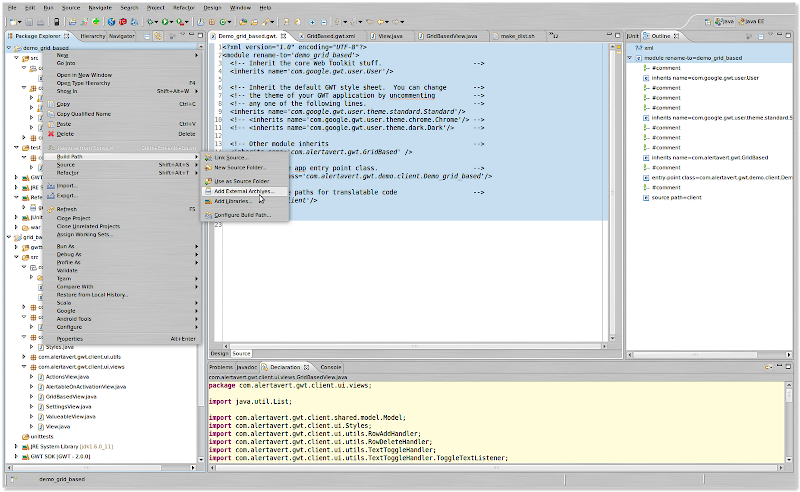
Assuming that you have GridBased.jar in your filesystem, all you have to do in Eclipse is to right-click on the Project's folder in the Package Navigator, select Add External Libraries, and then point to the newly-minted jar:


So, I hear you asking, how do you go about creating the JAR file in the first place.

One option, obviously, would be to use Eclipse's built-in jar builder (File > Export... > Jar file) and select the necessary and desired .class files, checking the "Export Java source files and resources" option.

However, I found that option to work not too well for me, and also rather cumbersome to remove the unit test class files from the generated jar.

So I resorted to this simple shell script to hand-craft my jar, adding the necessary .java and .class files, whilst removing all unit tests:

#!/bin/bash

BASEDIR=/home/marco/workspace-gwt-modules/grid_based
VERSION=0.1

cd $BASEDIR
rm -rf dist
mkdir dist
cp -R src/com/ dist/ && \
cp -R war/WEB-INF/classes/com/* dist/com/ && \
find ./dist|grep -e [a-zA-Z]*Test\.class|xargs rm && \
find ./dist|grep -e Testable.*\.class|xargs rm

cd dist && jar cvf gridbased_${VERSION}.jar com/

Even if you don't get all the nuances here, it's pretty clear that I'm gathering all the source (.java) files from src/; all the binaries (.class) from war/WEB-INF/classes (the default place for any GWT application created using Google's plugins); into and removing all test classes and utilities from the dist/ folder and then mashing them all up using jar cvf ... into gridbased_0.1.jar
(I use ClassNameTestable for those classes that are not quite mocks, but extend some 'genuine' class so that they can expose private/protected members for inspection and manipulation during testing).

And that's pretty much about it: if you then want to use a GridBasedView-derived class to display, for example, a grid where odd-numbered rows have your own custom style, you can do so:
// Copyright AlertAvert.com (c) 2010. All rights reserved.
// Created 6 Jan 2010, by M. Massenzio (m.massenzio@gmail.com)
package com.alertavert.gwt.demo.client;

import com.alertavert.gwt.client.SimpleGridBasedView;

public class AlternateRowsSimpleGrid extends SimpleGridBasedView {

public AlternateRowsSimpleGrid(int rows, int columns) {
super(rows, columns);
}

@Override
public void fillCell(int row, int column) {
super.fillCell(row, column);
if ((row % 2 == 1) && (column == 1)) {
getGrid().getRowFormatter().setStylePrimaryName(row, "odd_row");
}
}
}
where your own-derived class is inheriting from a class that was defined inside the GridBased module:
public class SimpleGridBasedView extends GridBasedView {
  // implements all the abstract methods defined in GridBasedView
}
and having the .class files inside the JAR allows Eclipse to do all its magic (including code-completion, snippets and javadoc).
Blogged with the Flock Browser

Saturday, January 16, 2010

A visual diff for Mercurial

I have already mentioned in the past how much I like Mercurial as a distributed VCS, and how strongly I encourage anyone who is doing development (in team with others, or on your own) to seriously consider adopting it.

However, one of the features I've been greatly missing is a quick way to check which files have been changed between two revisions in a way as simple as the hg status does for the current working directory v. the last committed change: perhaps there is a way (if so, please do let me know) but it's certainly well hidden.

After a bit of tinkering with regular expressions and grep, one can easily come up with the following:
hg diff -g --nodates ${REV1} ${REV2}|grep -E '^\-{3}|^\+{3}'|grep -v '/dev/null'
and get a reasonable (if not terribly readable) list of files changed: there are obviously "duplicates," (they are actually the majority of the list's entries) but one cannot limit the RegEx to just the '- - -' or '+++', as one would miss either the new files or the deleted ones.

I then came across this nice little trick by James Falkner that, in one shot, taught me about Zenity and gave me an idea as to how achieve the optional bonus of being also able to view the changes in tkdiff.

Before we get into the actual script, a very warm recommendation about installing Zenity (why that doesn't come as standard with every Ubuntu install is now beyond me: it is so totally easy to use and mind-blowingly useful that I'm kicking myself for not having discovered it earlier).

In a standard Ubuntu desktop install, you are likely to miss a few packages: gtk+ 2.0, libglade 2.0 and libgnomecanvas 2.0, and it's not obvious which packages contain them: they are, respectively, libgtk2.0-dev, libglade2-dev and libgnomecanvas2-dev.
sudo apt-get install libgtk2.0-dev libglade2-dev libgnomecanvas2-dev
I also recommend installing GTK's documentation, the build-essential package and devhelp (the latter can be found in Applications > Programming and is a simple tool to visualize a wealth of docs and information about various libraries, including GTK+ 2.0 and Libglade):
sudo apt-get install libgtk2.0-doc devhelp build-essential
To install Zenity, the usual drill: unpack the tar file into a directory of your own chosing, then run:
$ ./configure
$ make
$ sudo make install
(note the last command to be run as root, or you won't be able to install the binaries and other files in directories owned by root).

Help about Zenity and examples as how to use it can be found in the standard Gnome Help Centre (there is typically a shortcut in the menu bar at the far right top end, and in the standard Ubuntu theme looks like a lifesaver).

I now have all the bits in place, and the script looks thus:
#!/bin/bash
# Lists the files changed from two revisions
# Usage: hgfiles 50 55
#
# Clones the current repository at -r 50 and -r 55, into two temporary directories, and, optionally, saves
# the SECOND clone in a directory of the user's choosing, possibly after the user has edited the files.
# Uses tkdiff to show the diffs and Zenity to show the dialogs
# See http://codetrips.blogspot.com/ for further information

TMPDIR=/tmp
FILES=$TMPDIR/hg_files.tmp

if [ -n "$1" ]; then
REV1="-r $1"
TMPDIR1=$TMPDIR/clone_$1
else
echo "At least one revision must be specified"
exit -1
fi

if [ -n "$2" ]; then
REV2="-r $2"
TMPDIR2=$TMPDIR/clone_$2
else
zenity --question --width=400 --text="Using current revision for diff: was this expected?"
echo "Zenity says: $?"
if [ $? == 1 ]; then
zenity --error --text="Diff canceled"
exit 0
fi
TMPDIR2=$TMPDIR/clonelatest
fi

hg diff -g --nodates ${REV1} ${REV2}|grep -E '^\-{3}|^\+{3}'|grep -v '/dev/null' > $FILES

FILELIST=`cat $FILES |java -cp /home/marco/bin com.alertavert.simple.HgDiff`

hg clone $REV1 ./ $TMPDIR1
hg clone $REV2 ./ $TMPDIR2

while [ 1 ] ; do
FILE=`zenity --list --width=700 --column="File to show diffs for" $FILELIST`
if [ -z "$FILE" ] ; then
FOLDERCOPY=`zenity --file-selection --directory --save \
--title="Select a folder to save changes"`
case $? in
0)
echo "Folder selected: $FOLDERCOPY" && cp -r --target-directory="$FOLDERCOPY" "$TMPDIR2"/*;;
1)
echo "No folder selected";;
-1)
echo "No folder selected";;
esac
rm -rf $TMPDIR1 $TMPDIR2
exit 0
fi
tkdiff $TMPDIR1/$FILE $TMPDIR2/$FILE
done
Again, not pretty, but it does the job.

The only bit of "mystery" may be that command piped just after the grep:
java -cp /home/marco/bin com.alertavert.simple.HgDiff
but that is a really trivial class to remove the "+++ a/" (or "--- b/" from each of the lines grepped from the output of hg diff:
package com.alertavert.simple;

import java.io.*;

public class HgDiff {
public static void main(String args[]) {
BufferedReader reader = new BufferedReader(new InputStreamReader(System.in));
String line;
try {
while ((line = reader.readLine()) != null) {
if (line.startsWith("+++") || line.startsWith("+++")) {
String trimmedLine = line.substring(6);
System.out.println(trimmedLine);
}
}
} catch(IOException ex) {
// ignore
System.exit(-1);
}
}
}
It's that trivial: there's a reason why it wound up in the 'simple' package...

I could have probably achieved the same effect with some twisting of sed/awk, but honestly, it took me less time to knock this together (it was a strange feeling going back to using gedit and javac, as I really felt that really, just booting up Eclipse to create it would have taken longer!) than even look'em up on Google.

Just remember to change the -cp /home/marco/bin to reflect the folder under which you will install the .class file.
Blogged with the Flock Browser

Wednesday, January 6, 2010

Simple script to add a file or directory to Mercurial's .hgignore

If you use Mercurial as a Source Control Management (SCM) system (and if you don't, then you should seriously ask yourself why) then you have probably grown used to the rather repetitive editing of the .hgignore file, to add files / folders that should not be under version control.

The need is particularly acute if you use IDEs and / or application frameworks, as they both tend to have their own quirky way of arranging files, and most of the folders they use or generate should really not be under source control (especially if you are working with a number of co-workers, who may very well use different IDEs, platforms or even OSes).

The process is rather straightforward: you add a couple of lines (possibly preceded by a comment) to .hgignore, usually specifying the folders to avoid using a RegEx.

Having grown tired of typing this up every time, I decided that a simple shell script was in order[*] to save myself some typing (as Martin Fowler said: "I'm a lazy person: I'm prepared to work pretty hard to save myself work").

The only quirk is that there is a minor difference in the RegEx you want, depending on whether you are trying to ignore a directory or a file (possibly a file pattern, such as all .class files, where you would use something like ".*\.class$" for your RegEx).
The script handles this very simplistically, checking whether the passed parameter corresponds to an existing directory, and, if not, treats it as a straightforward pattern that simply gets copied to .hgignore.

I am positive there may well be a number of corner cases where this all fails abysmally; but in that event, it's probably much simpler to directly edit .hgignore, than trying to ferret out the cleverest possible algorithm.

Here it is, in all its glorious banality: I post it here, just in case others may find it useful (if you do, and find yourself improving on it, please feel free to post back comments with your suggestions).
#!/bin/bash
#
# Simple script to add a folder to the list of those ignored by hg
# Usage: hgignore FOLDER [COMMENT]
#
# Created by M. Massenzio (c) 2010 AlertAvert.com

USAGE="Usage: hgignore FOLDER [COMMENT]"

if [ ! -e .hgignore ]; then
echo "Could not find .hgignore in the current directory:"
echo "are you sure this project is being tracked by HG (Mercurial)?"
echo ""
echo $USAGE
exit -1
fi

if [ ! -z "$2" ]; then
echo "# $2" >> .hgignore
fi

if [ -z "$1" ]; then
echo $USAGE
exit -2
fi

echo "syntax: regexp" >> .hgignore
if [ -d $1 ]; then
echo "^$1\$" >> .hgignore
echo "Added directory $1 to the list of ignored directories in .hgignore:"
else
echo "\\$1\$" >> .hgignore
echo "Added file pattern $1 to the list of ignored files in .hgignore:"
fi
echo "" >> .hgignore

echo "--- Contents of .hgignore ---"
cat .hgignore
echo "--- File ends ---"
[*] I do not even attempt to pretend I know the first thing about shell scripts: however, the above seemed trivial enough that I felt reasonably confident that it should do no harm, despite my n00b-ness.

Blogged with the Flock Browser